

Advanced Configuration
Execution Mode
Based on the trigger type selected at creation, workflows will execute in either "asynchronous" or "synchronous" mode. Asynchronous mode means that after a specific event is triggered, it will enter the workflow queue and be executed one by one by background scheduling. Synchronous mode does not enter the scheduling queue after being triggered but starts executing directly and provides immediate feedback after execution is complete.
Data table events, post-operation events, custom operation events, scheduled task events, and approval events will execute asynchronously by default. Pre-operation events execute synchronously by default. Both modes are supported for data table events and form events, which can be selected when creating a workflow:
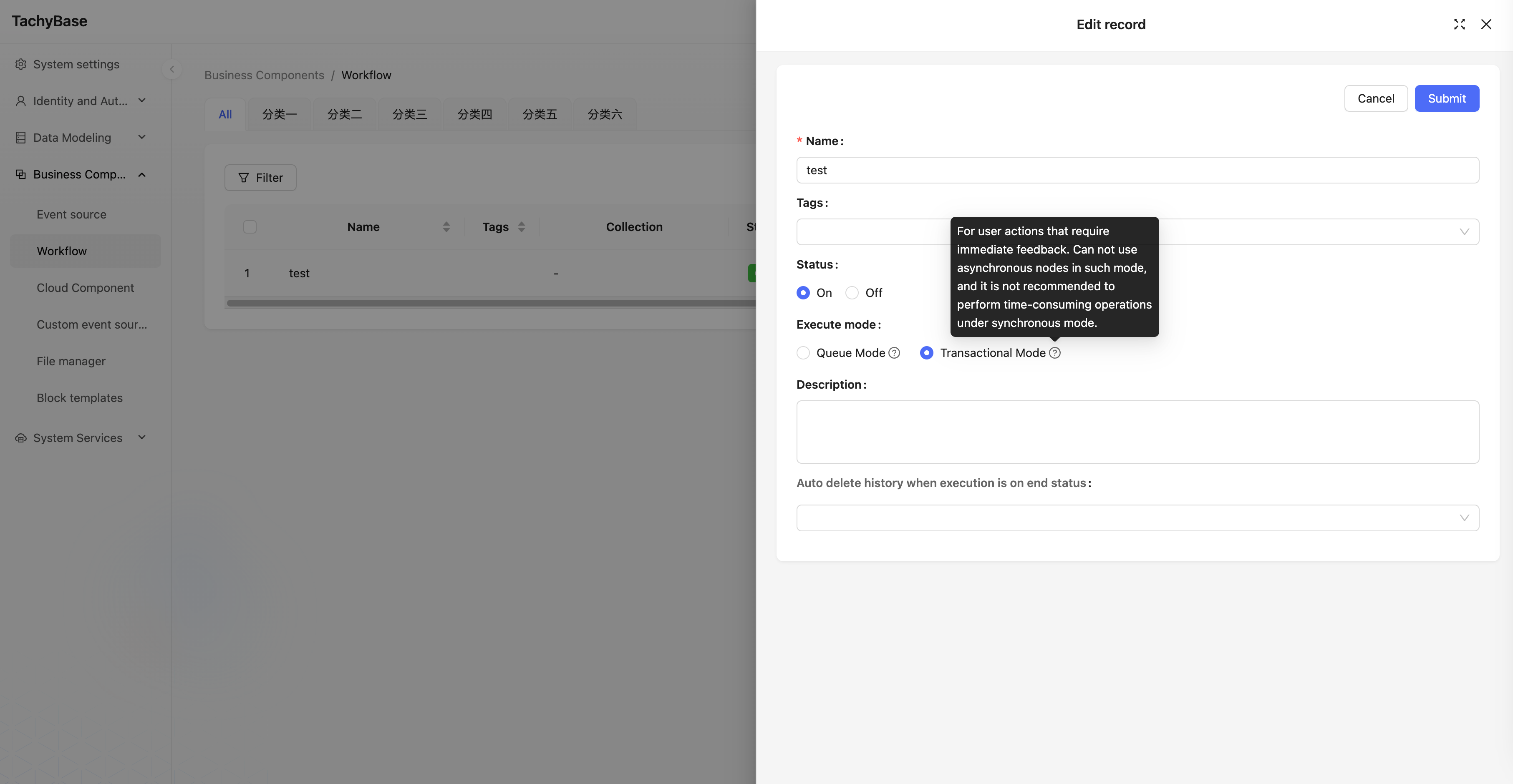
Workflows in synchronous mode are limited by their mode and cannot use nodes internally that would produce a "waiting" status, such as "Manual Processing", etc.
Auto Delete History Records
When workflows are triggered frequently, you can configure automatic deletion of history records to reduce interference and also reduce database storage pressure.
Also in the workflow create and edit popup, you can configure whether the corresponding process automatically deletes history records:
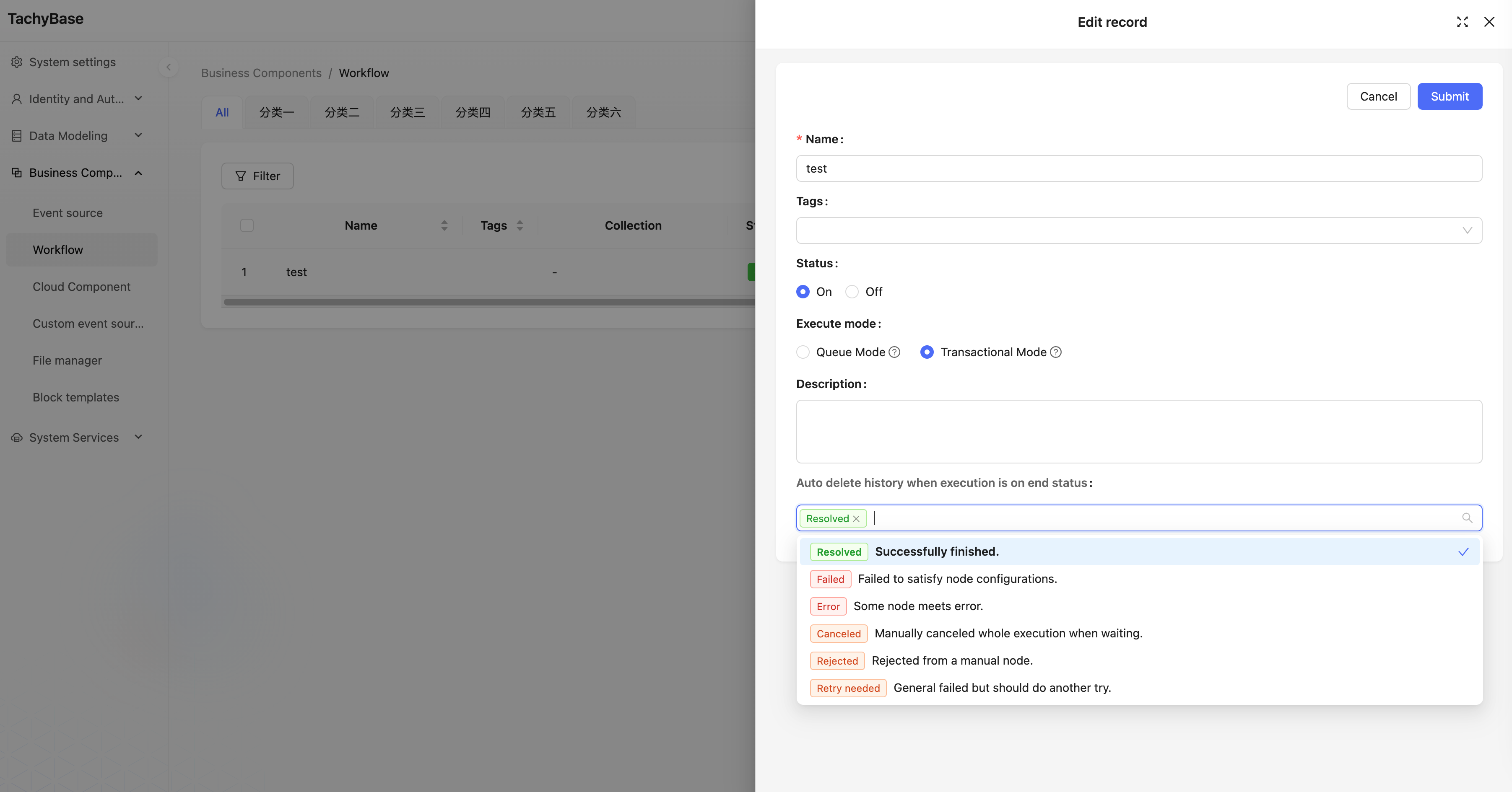
Automatic deletion can be configured according to the status of execution results. In most cases, it is recommended to only check the "Completed" status, so that failed execution records can be retained for subsequent troubleshooting.
It is recommended not to enable automatic deletion of history records when debugging workflows, so that you can check whether the workflow's execution logic meets expectations through history records.
Deleting workflow history will not reduce the count of workflows already executed.